Addovation Sync - AI PO - User Guide
Last Updated: 2025-03-26
Introduction
Addovation has developed a solution for automates order confirmation by processing emails with attached PDFs. This solution extracts order details, validates them against the IFS system, and updates order statuses accordingly.
Addovation Sync - AI PO - user guide contains the instructions on basic data in IFS required by the service and other required details for the AI PO Service.
The User Guide is envisioned to assist individuals utilizing the Addovation Sync - AI PO Service.
The guide covers the following sft parts:
- Order Creation in IFS
- PDF Creation
- Send Order Confirmation Email
- Attaching the Order Confirmation PDF
- Order Validation and Processing
- Approval Process
Order Creation
You may use either:
- An existing order (provided it is not in the confirmed stage), or
- A new order created specifically for this process
Important
- Orders that are already in the confirmed stage cannot be used.
- Buyer should have an email box
PDF Creation
- Use the provided Word document template or create a word document to generate the PDF.
Important
- The attached PDF must follow the
- pre-trained format and include:
- Order Number
- Part Number(s)
- Description(s)
- Quantitie(s)
- Replace the placeholders in the document with the appropriate order details: - Order Number, Part Line Details (Part No., Description, and Quantity).
Sending Order Confirmation Email
Attach the prepared PDF in the above step to an email.
The email subject must contain "Order Confirmation".
Attaching the Order Confirmation PDF
The attached PDF must follow the pre-trained format and include:
- Order Number
- Part Number(s)
- Description(s)
- Quantitie(s)
The system extracts these details and validates them against the IFS system.
Order Validation and Processing
Once the email is received, the system:
- Extracts order details from the PDF.
- Validates part numbers against IFS data.
- If all part numbers are valid, the order is updated and confirmed.
- If any invalid part number is found:
- That part is not modified in IFS.
- The entire order is not confirmed until the issue is resolved.
Approval Process
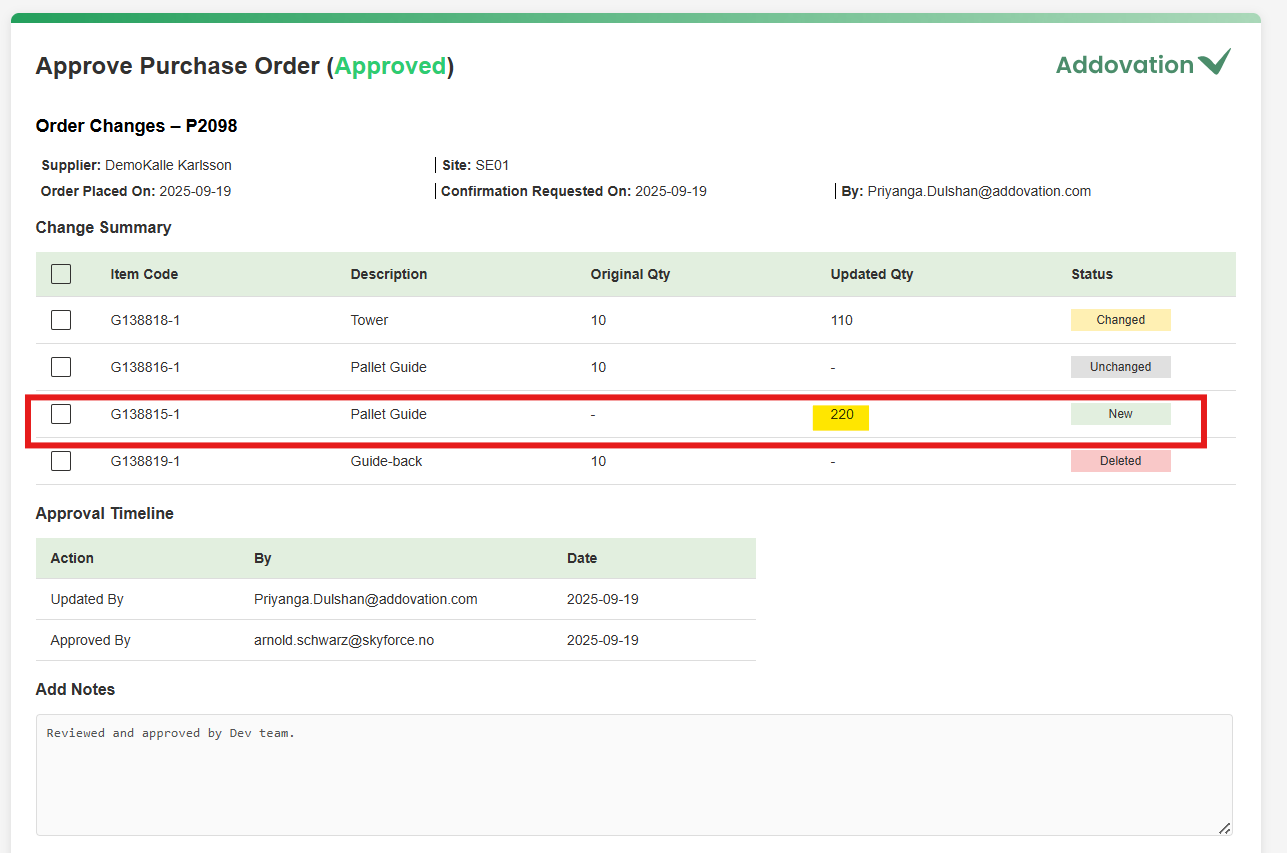
- After the email is received by the buyer of the order will automatically receive an email containing a link to the approval page.
- The approval page will display all changes captured in the confirmation PDF, such as:
- New part line information
- Quantity changes
- Newly added part lines
- Part lines marked for removal
- The buyer can then:
- Review all changes.
- Select the relevant checkboxes at the start of each part line.
- Click the Approve button to confirm
- If required, the buyer may also add comments or notes in the Add Note section before
approving.